NotebookLM for beginners: compare two quotes with Data Tables
You need a workshop room and have two quotes to compare. One has a lower hire price; the other includes coffee. Data Tables in NotebookLM can put the terms side by side and help you see what to ask before choosing.
In our test, the comparison shortened "coffee included for up to 16 participants" to "Included". It looked plausible but lost a condition. This guide uses two fictional quotes to demonstrate the workflow, including checking the result against the originals.
What you will have in 15–20 minutes
You will create a notebook, add one source containing two quotes and generate a comparison in Data Tables. Then you will check the details and write a question for the supplier whose quote leaves something unclear. Allow additional time for generation and signing in.
Data Tables is NotebookLM's feature for organizing information from sources into rows and columns. Here we use it for incoming quotes, not to draft a new proposal or automatically choose a supplier.
Source: Google on Data Tables in NotebookLM.
1. Open NotebookLM and create a notebook
Go to notebook.google.com on your computer and sign in with your Google account. Google's current Help pages use the name Gemini Notebook. We use NotebookLM in this guide to make the tool easy to find.
Choose Create new notebook and name it something like "Workshop room". Choose Upload a source to add the material in the next step. For more help with the basics, see our first NotebookLM guide to sources and questions.
Check that Data Tables appears in Studio. Google lists limited access on Standard; availability and organization rules can differ. Use quotes you are allowed to upload and review access before sharing anything. This exercise uses invented material only.
Sources: Google: create a notebook and current access levels and limits.
2. Add two quotes in one source
Create a text file with the following details and upload it. Both quotes cover a half-day. The letters and numbers are source labels we added to make each fact easy to find again. They are not automatic clickable citations.
Quote A: Birch
- A1: Half-day room hire: SEK 2,400 excluding VAT.
- A2: Capacity: up to 12 participants.
- A3: Projector included.
- A4: Coffee costs SEK 45 per person excluding VAT.
- A5: Cancellation without charge until 7 days before the workshop.
- A6: The quote provides no accessibility information.
Quote B: Pine
- B1: Half-day room hire: SEK 2,900 excluding VAT.
- B2: Capacity: up to 16 participants.
- B3: Projector costs SEK 300 excluding VAT.
- B4: Coffee included for up to 16 participants.
- B5: Cancellation without charge until 3 days before the workshop.
- B6: Step-free entrance explicitly confirmed.
Open the imported source and check that the complete text is there. Our hands-on test used one English text file containing both quotes. We did not test two separate PDF uploads.
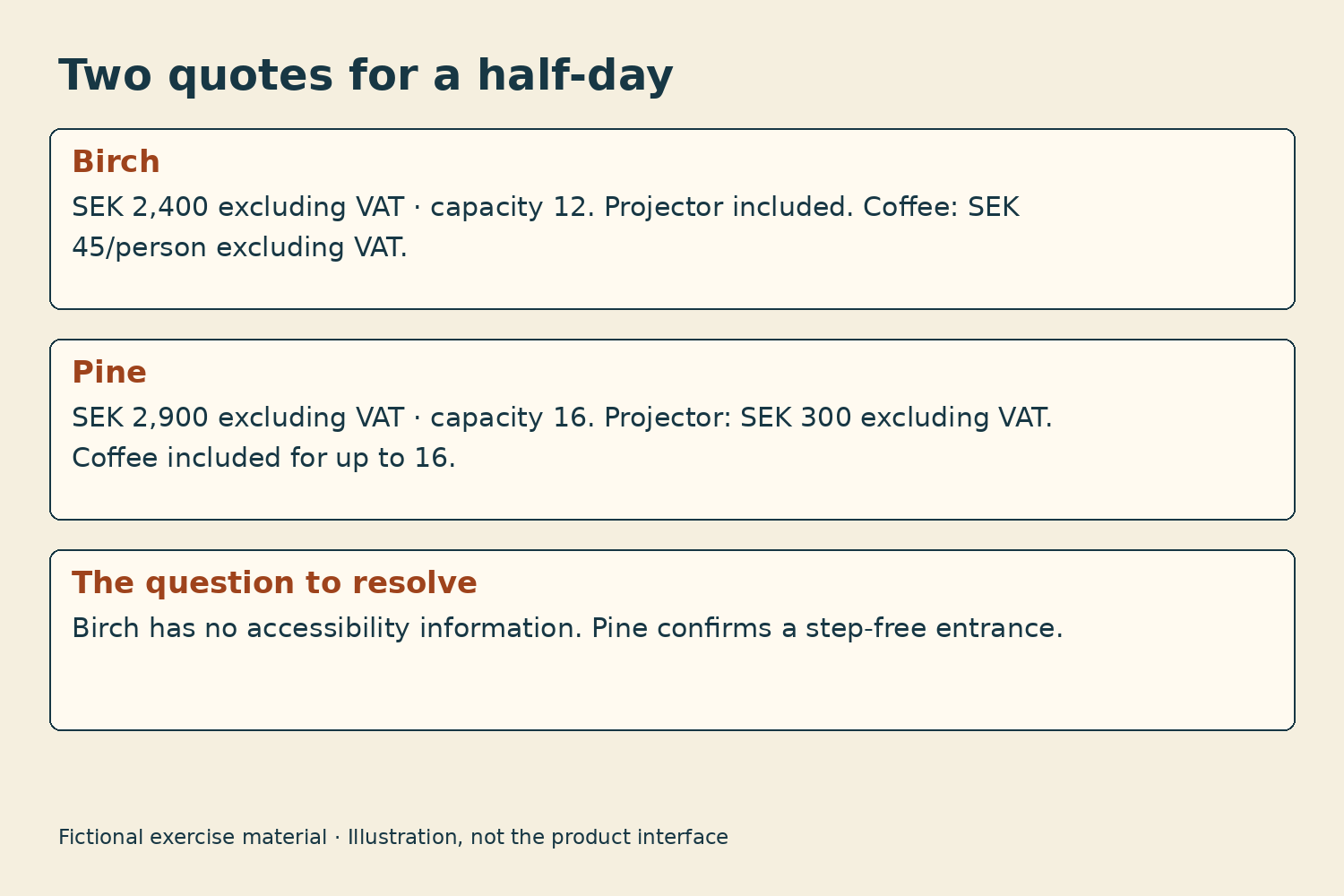
Illustration of the exercise's source material, not a NotebookLM screenshot.
3. Create the comparison with Data Tables
In Studio, choose the pencil icon beside Data Tables to customize the result. Select English as the language and describe the rows and columns you need. Then generate the table.
Use this instruction:
Compare the two fictional room-hire quotes. Use one row per quote and columns for quote, half-day room hire excluding VAT, capacity, projector, coffee, free cancellation cutoff and accessibility. Keep source labels A1–A6 and B1–B6 and all conditions and limits. Write Not stated for missing information. Do not calculate totals or choose a winner.
This creates a comparison in Data Tables. Do not just ask the chat to write a table if you want to follow the same workflow. When the result is ready, open it and read each row. The instruction helps control the format but does not guarantee every condition survives.
Source: Google's instructions for Data Tables in Studio.
4. Check the terms against the originals
Start with details that affect the comparison: half-day hire, capacity, extras, cancellation and accessibility. Check the words around the prices too. "Excluding VAT" and "up to" can matter as much as the number itself.
Our English and Swedish results dropped the sixteen-person limit on included coffee. They also omitted explicit VAT wording in the cells for Birch's coffee and Pine's projector. A heading about base hire excluding VAT does not clearly explain separate extras.
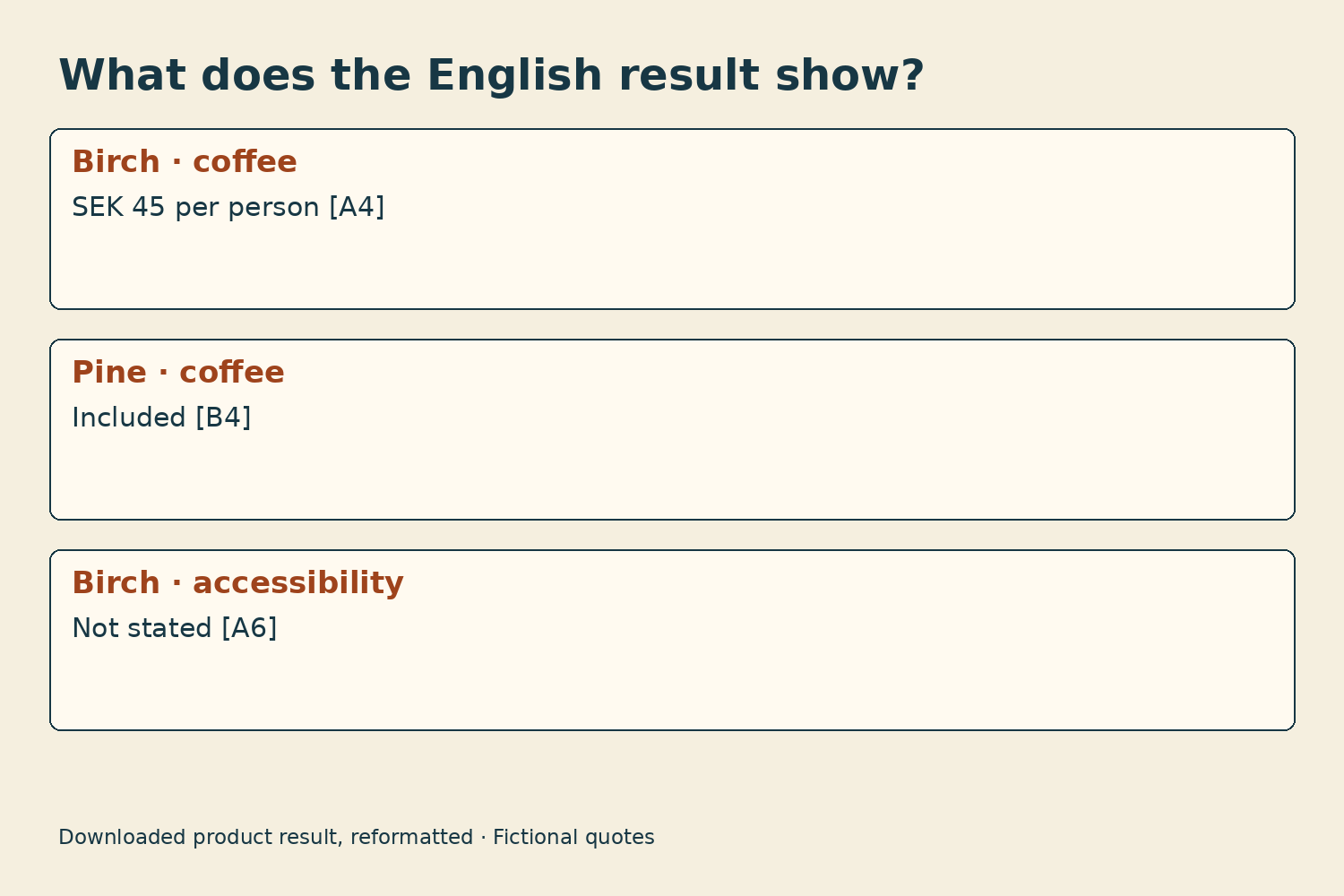
Downloaded English product result, reformatted for readability. This is not a browser screenshot. Supplier names are shortened; cell contents are preserved.
Write a separate review note with the details to restore:
- Birch, coffee: SEK 45 per person excluding VAT, from A4.
- Pine, projector: SEK 300 excluding VAT, from B3.
- Pine, coffee: included for up to 16 participants, from B4.
We made these corrections in a local copy of the downloaded file. That did not change the original NotebookLM result. Keep the original so you can see what the AI actually produced.
5. Ask about missing terms before choosing
Birch's accessibility field says "Not stated". That does not mean the room lacks a step-free entrance. It means the source does not answer the question.
Your next question is: "Does the Birch room have step-free access?" Pine already confirms a step-free entrance, but that is not a promise of complete accessibility.
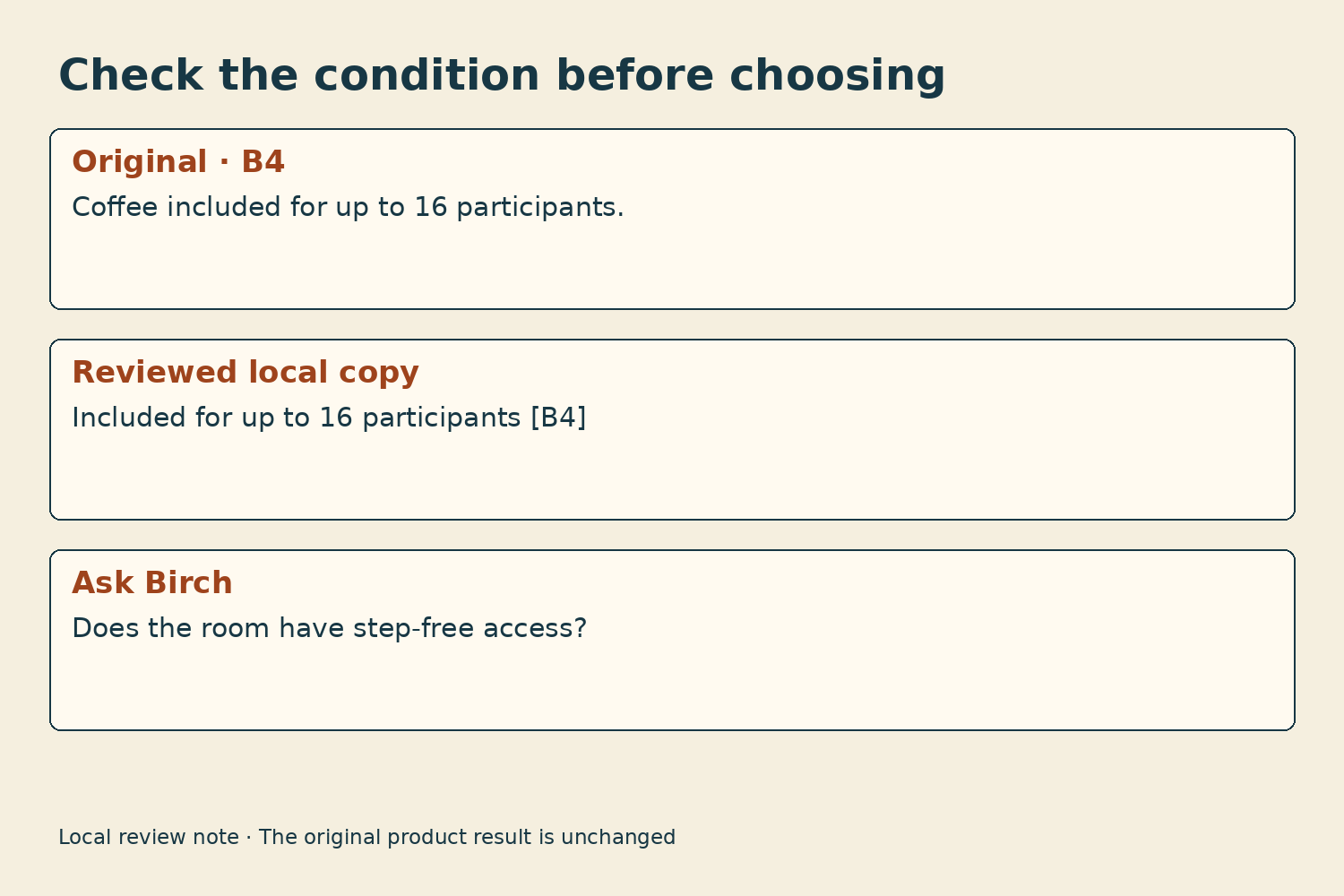
Reviewed local note. Neither quote has been selected as the winner.
You are finished when the terms are checked and the unanswered question is clear. Do not send an enquiry or make a booking as part of this exercise.
If you want to continue in a spreadsheet, Google documents Export to Sheets through the three-dot menu. Changes there do not sync back, and sharing permissions do not carry over. This is an optional next step; we did not test browser export for this guide.
If your team compares quotes regularly, Hammer Automation can help you build a document-comparison routine that includes checking terms before deciding.
How we tested this
We used real Google NotebookLM Data Tables through a third-party command-line tool, downloaded the results as CSV and compared them with both the original text and the imported source. We generated and reviewed Swedish and English results. Google did not expose the underlying model. The browser buttons above were checked against Google's documentation, not through a signed-in browser demonstration. The test uses fictional quotes and does not establish the tool's general accuracy.
FAQ
Can I use Data Tables without a paid plan?
Google lists limited access on Standard. Check current limits and whether the feature is available to your account.
Does NotebookLM choose the best quote?
The table helps you compare terms. Confirm missing details with the supplier before choosing. In this guide, we do not ask the tool to pick a winner.
Can I export the comparison?
Google documents Export to Sheets. Exported changes do not sync back and permissions do not carry over. Our hands-on test used CSV through a third-party tool, not browser export.
The Forge newsletter
Get new articles in your inbox
Pick the topics you care about. No noise, at most one email a week.
We follow GDPR. Unsubscribe anytime.