Canva Craft: make a class ad with room for text
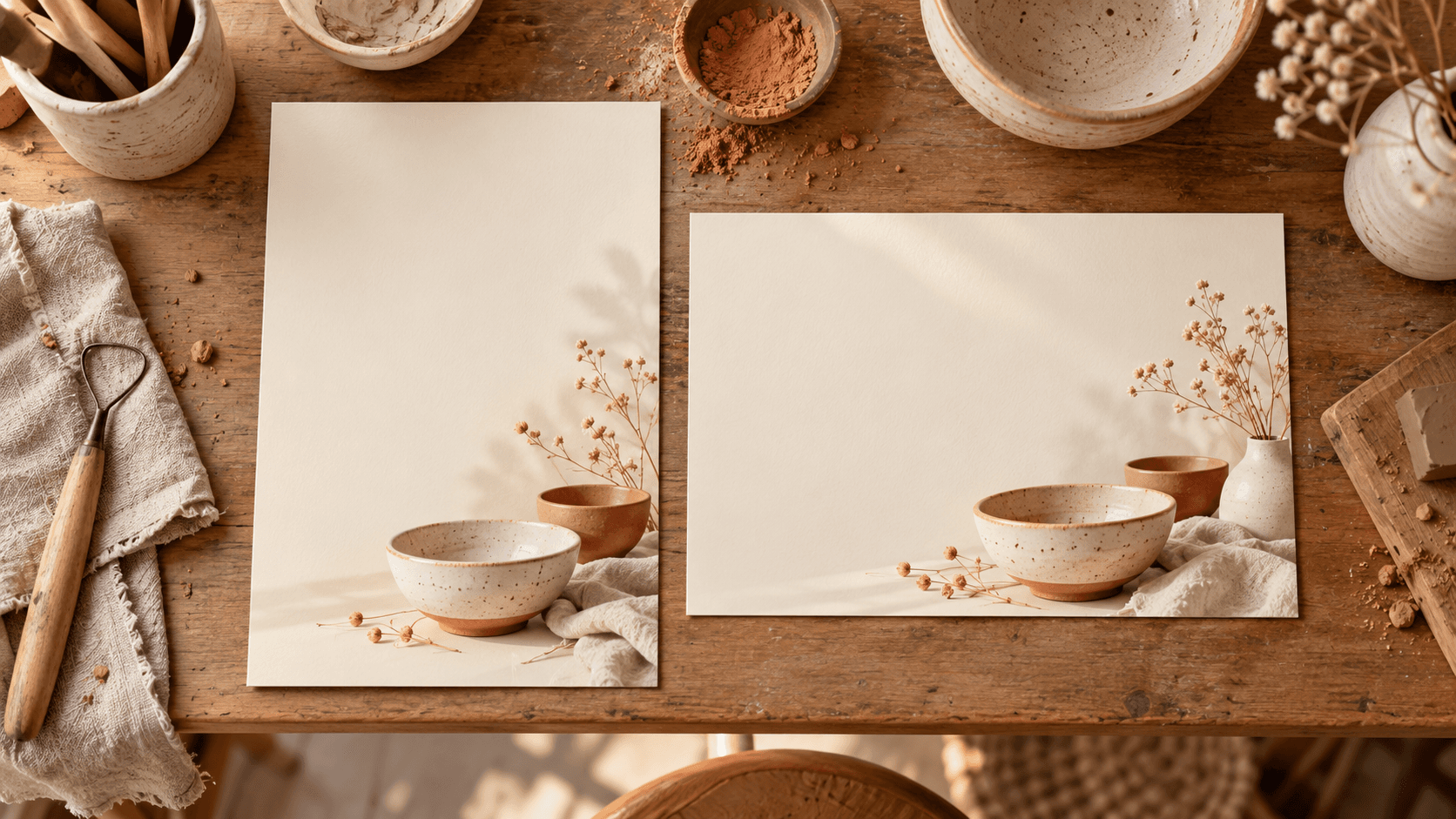
An image for a pottery class can look good and still be unusable as an ad. The bowl sits where the headline needs to go, and cropping for another format cuts off the tools. Decide where the subject and text belong before generating the image.
Canva Craft, launched on October 22, is Canva's new AI image model. It plans the composition before rendering the image and supports more than 30 aspect ratios, plus custom proportions. Here we use it to make two backgrounds for the same class: a portrait image for a social post and a landscape image for the website.
Source: Canva: Introducing Canva Craft.
Open Dream Lab and choose the format first
Canva says Craft is available to all Canva users globally. Open Dream Lab in the bottom left panel, or go directly to Dream Lab. Check the usage limits shown in your account before making lots of variants. The announcement does not specify an exact allowance per plan; global access does not mean unlimited generation.
Choose the aspect ratio for your first placement, such as 4:5 for a portrait post. Start with the space where you will actually use the image. These are your setup actions in Canva, not instructions for the model to carry out for you.
Canva documents support for prompts in any language. You can write the brief below in English or Swedish. We leave the class name, date, and booking details out of the generated image and add them as editable text afterward.
Source: Canva: Craft formats, languages, and availability.
Copy this visual brief for a class advertisement
This is our suggested reusable visual brief. Change the subject and colors to suit your event. Keep the instruction about leaving room for text.
Create an illustrative background for an advertisement for an adult pottery class.
Format: portrait 4:5.
Subject: two handmade bowls, a piece of clay, and a modeling tool on a workbench.
Place the subject in the bottom right of the image. Leave the upper left half quiet and empty for a headline and class information that I will add later.
Use a warm off-white background, terracotta, and soft daylight. The image should feel like a welcoming workshop.
Do not generate letters, numbers, logos, or watermarks.
Check the composition before choosing an image. Is there really room for the class information? Do the tool and bowls look plausible? If the subject fills the frame, clarify its placement and generate another version. Avoid spending time refining a headline over an image that has no room for it.
Make the website version with the same brief
Next, choose 16:9 for the website's landscape placement and change the format line in the brief. Keep the subject, colors, and lighting, but ask for the subject on the right and empty space on the left.
These are two separate generations. The same brief gives them a shared direction, but it does not guarantee identical bowls or details. If the image must show a particular product, venue, or instructor, use a real photograph of what the customer will see.
Canva describes support for custom proportions and images up to 2K. That alone does not establish print quality for a large poster; check the file's actual dimensions and your printer's requirements separately.
Source: Canva: Craft image formats and resolution.
Add the facts and check both versions
Use the backgrounds in your Canva designs. Add the class name, date, location, and booking address as ordinary editable text, taken from the current class information. You can then change a date without regenerating the subject.
Check each finished version at the size people will read it:
- The headline is immediately visible and does not clash with the subject.
- The date, location, and booking address match the class information.
- The text is readable on a phone.
- The image reads as an illustration, not a photographic promise about the actual venue or class results.
Save the brief with both designs. For the next class, you can change the information in the text fields and reuse the backgrounds if they still fit, rather than starting with a new image every time.
The Forge newsletter
Get new articles in your inbox
Pick the topics you care about. No noise, at most one email a week.
We follow GDPR. Unsubscribe anytime.