When Gmail finds the context itself: turn replies into a routine

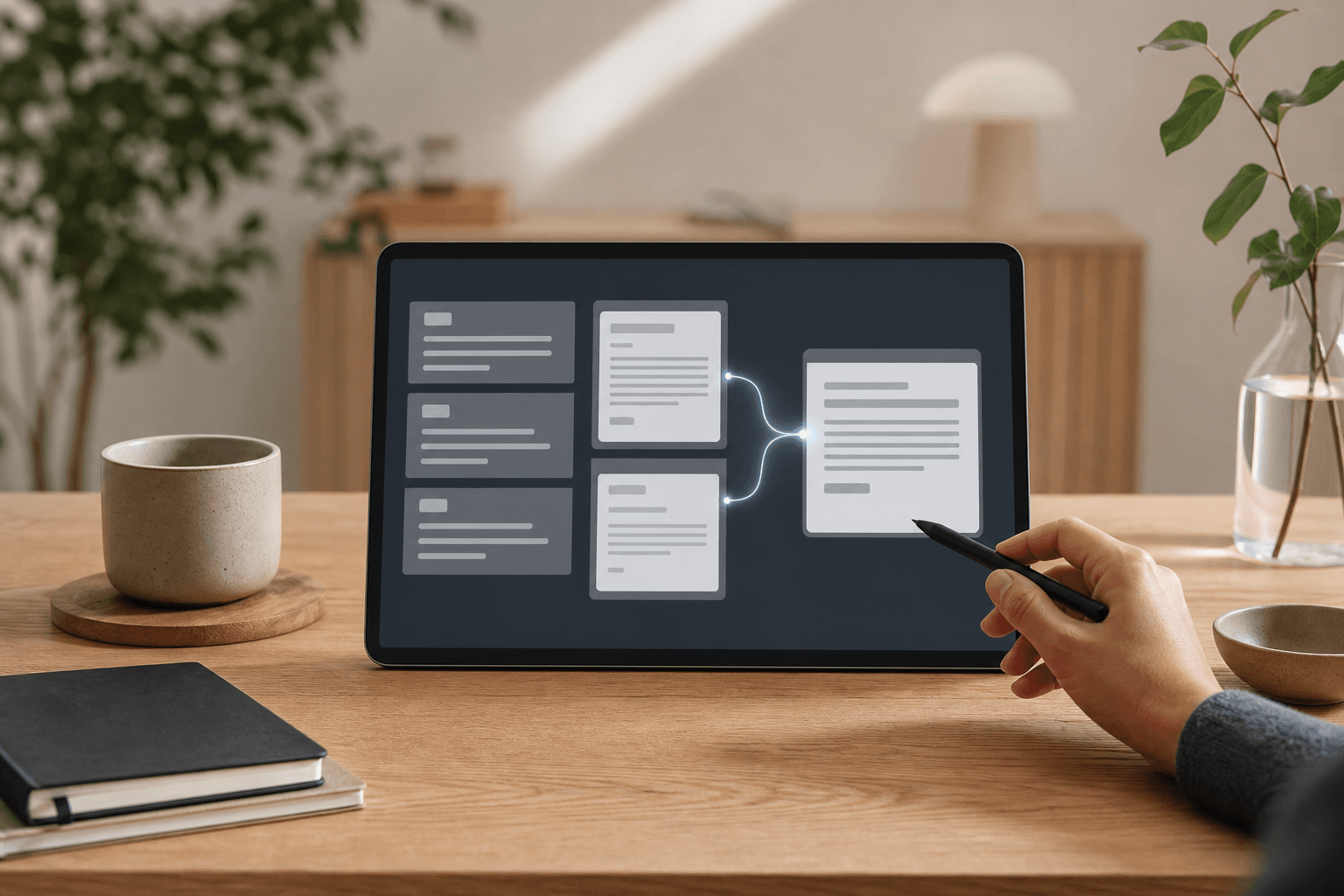
Email is still where a lot of work gets stuck.
A customer asks about delivery time. A parent wants the details for next week's school trip. A partner needs the latest price list. Someone on the team replies by searching old threads, opening Drive, copying a few lines, rewriting the answer, checking it again, and sending.
That is not a dramatic AI problem. It is normal work.
That is why Google's latest update to Help me write in Gmail is more useful than another huge model announcement. Google says the feature is getting two new pieces: topic contextualization, where Gmail can use relevant context from Gmail and Google Drive based on your prompt, and tone and style personalization, where the draft can match the tone of emails you have written before. The promise is simple: less switching between apps, less copy-paste, and faster drafts for common replies.
Source: Google Workspace Updates: Improvements To Help Me Write in Gmail
For Hammer readers, the point is not that Gmail should suddenly "take over the inbox". That is almost always the wrong starting point. The point is that a small team can make one of its most repetitive work surfaces less slow. Not by giving up control, but by writing clearer rules for how replies should be prepared.
What actually changes in Gmail
A context-based AI draft is an email suggestion where the AI does not only work from your short instruction. It also uses relevant material from earlier emails and files. In Google's description, Help me write can connect to Gmail and Drive based on the prompt and insert relevant information into the draft. Google mentions customer and partner inquiries, distributing documents or materials, reporting progress, and asking the team for help.
That is a practical difference. A normal AI reply can sound polished but miss the details. A context-based reply can at least start from the right price list, meeting note, or customer thread. That does not make the reply finished. It gives the human a better first draft to review.
Google also describes Gemini in Gmail as a tool for writing, summarizing, organizing, searching, and replying to email. On the product page, Google highlights that Gemini can summarize long threads, use Google Drive files when you tag them with @, suggest contextual replies, and help find details such as receipts, dates, booking information, or supplier quotes.
Source: Gemini in Gmail – How to Use AI for Email
For a solo operator, this might mean replying faster to quote requests. For a small shop, it might mean returns, stock questions, and delivery times. For a school, it might mean recurring questions where the answer has to match the current information, not what someone remembers from last term.
This is not only a writing feature
The easy mistake is to treat the feature as a better text generator. Then the goal becomes "write a nicer email".
The more useful goal is: "prepare a reply that uses the right source material, says the right thing, and still sounds like us".
That moves the work to a different level. You do not need to start with advanced automation. You need to start with a small reply process:
- Which types of emails may AI help with?
- Which files count as approved source material?
- What must always be checked before anyone sends?
- What tone should the reply have?
- When should the AI ask for more information instead of filling the gap?
It sounds almost too simple. But this is often where the difference sits. Many small teams already have the information they need. The problem is that the information is scattered across the inbox, old documents, agreements, slide decks, and one person's head.
Gemini in Gmail makes it more tempting to use that information directly in replies. So the next question is not "can AI write?". The question is "does AI know which source is current?".
A 30-minute routine for replies that use the right context
Here is a small workflow for an organization with 1-10 people. It does not require a new systems map. It only requires one recurring email flow and a willingness to write down what a good reply should look like.
1. Pick one email type. Start with something frequent that does not require expert judgment every time. Examples: quote request, booking change, return question, course information, delivery status, or "can you send the latest material?".
2. Put approved sources in one place. Add the current price list, policy, service description, schedule, FAQ, or project plan to a clearly named Drive folder. If old versions exist, archive them or name them so nobody confuses them with the current source.
3. Write a reply rule. Keep it short. It should say what the AI may use, which facts must be checked, and when the reply should be handed to a human without a suggested answer.
4. Ask for a source receipt in the draft. The customer does not need to see it. But the working draft should show which emails or files the AI relied on. If you cannot see where a fact came from, do not send it.
5. Review before sending. The human checks price, date, delivery promise, names, attachments, and tone. This is quick when the draft is good. It is still quicker than fixing a bad answer after it has gone out.
6. Save the working version. When the answer works, save the prompt, the reply rule, and maybe a template. That is the beginning of an internal answer book, not a one-off trick.
Copy the prompt: "reply with source context"
Use this prompt in Gmail/Gemini as a working instruction. Replace the bracketed parts.
Help me write a reply to the email in this thread.

Goal: [for example: answer the quote request, confirm a booking, explain the return rule, send the right course information].

Only use source material from:
- the current email thread
- [name of Drive file or Drive folder]
- [relevant policy/FAQ/price list]

Reply in our tone:
- short and friendly
- concrete
- no promises about dates, prices, or special solutions unless they are in the source material
- write "I need to double-check" rather than guessing

Before writing the email itself, give me a short working receipt:
1. Which sources did you use?
2. Which facts must I check before sending?
3. Is any source material missing?

Then write an email draft in [Swedish/English] that I can review and edit before sending.
The important part is not that the prompt is perfect. The important part is that it forces three things small teams often miss in AI work: approved source material, a review point, and a clear tone.
The small safety piece that actually matters
Google's Gmail help reminds users that AI suggestions can be inaccurate and should not be treated as medical, legal, financial, or other professional advice. The same help page also says Google Workspace smart features are off by default in places including the European Economic Area, the United Kingdom, Switzerland, and Japan. For Nordic teams, that means someone often has to understand the settings before the feature appears everywhere.
Source: Summarize an email thread with an AI Overview – Gmail Help
Keep security practical. Give access only to the folders that are needed. Use clear owners for shared documents. Let AI read before it suggests, and let a person approve before anything goes to a customer, student, supplier, or partner. If you later connect Gmail to automations or other tools, use separate accounts, scoped permissions, environment variables or secret managers for keys, redacted test data, and logs of what was sent.
That is not a brake. It is what lets AI work inside a real organization without everything depending on gut feel.
When this becomes more than Gmail
The Google Workspace with Gemini page, last updated on 2026-05-21, shows Gemini across many Workspace surfaces: Gmail, Docs, Sheets, Slides, Drive, Chat, NotebookLM, Workspace Studio, AppSheet, and more. For a small team, the inbox is no longer a separate place. Email, documents, meetings, files, and simple apps are starting to connect.
Source: Google Workspace with Gemini – Google Workspace Help
This is where Hammer usually draws the line between a fun AI test and useful operational work. If you only try a button in Gmail, you get faster drafts. If you write a reply rule, build a small answer book, and decide which sources are trusted, you have the start of a reusable workflow.
It can become Skill Forge when the team needs to learn how to review AI replies. It can become Tool Forge when the reply flow should connect to forms, CRM, case management, or a simple internal log. But the first step is smaller than that.
Pick one recurring email. Gather the right source material. Ask AI to draft with a source receipt. Review the answer.
That is enough to see whether the inbox can get a little lighter this week.
Common questions before you start
Does the whole team need to use Gemini in Gmail right away? No. Start with one person and one email type. Once replies become faster and better, write down the routine and let more people use it.
Should AI be allowed to send replies automatically? Not at first. Let AI write drafts. Let people send. When the routine is stable, you can look at approval flows and logging.
What is the most common trap? Letting AI write without saying which source material counts. That often produces polished answers that require more checking than they save.
The Forge newsletter
Get new articles in your inbox
Pick the topics you care about. No noise, at most one email a week.
We follow GDPR. Unsubscribe anytime.