Claude for Beginners: Start Using Claude Chat in 10 Minutes


Claude is one of the easiest ways to start working with AI without building anything, installing advanced tools, or learning technical vocabulary. You write to Claude almost like you would write to a helpful coworker: explain what you want to do, give a little context, and ask for a first draft.
This guide is the first step in our Claude series. We will stay inside the basic chat experience. No Projects, Artifacts, Claude Code, or advanced agent workflows yet. The goal is simply to help you open Claude and use it for one real everyday task.
Source: Claude Help Center – Get started with Claude
Who this guide is for
This is for you if you run a small business, work solo, lead a small team, or work in education and want to understand how Claude can help in practice.
You do not need to know prompt engineering. You only need a concrete task, for example:
- writing a customer email
- summarizing messy notes
- creating a simple checklist
- planning a meeting or lesson
- improving a text before you send it
What you will learn in 10–20 minutes
After this guide, you will be able to:
- find the right way into Claude
- start a normal chat
- write your first useful prompt
- improve the answer with a follow-up
- avoid the most common beginner mistakes
Before you start
Go to claude.ai and sign in or create an account. Claude is also available as desktop and mobile apps, but the web version is the easiest place to start.
Also think about what information you paste into the chat. Start with safe material: a fictional customer situation, your own notes without personal information, or a text you wrote yourself. Do not paste passwords, sensitive customer details, student information, or internal business data unless you know it is allowed by your account and organization.
Step 1: Start a normal chat
When you open Claude, you will see a chat box. This is where you type your question or task. On the left side, you will usually see new and previous chats. Near the text box, you may also see which model you are using.
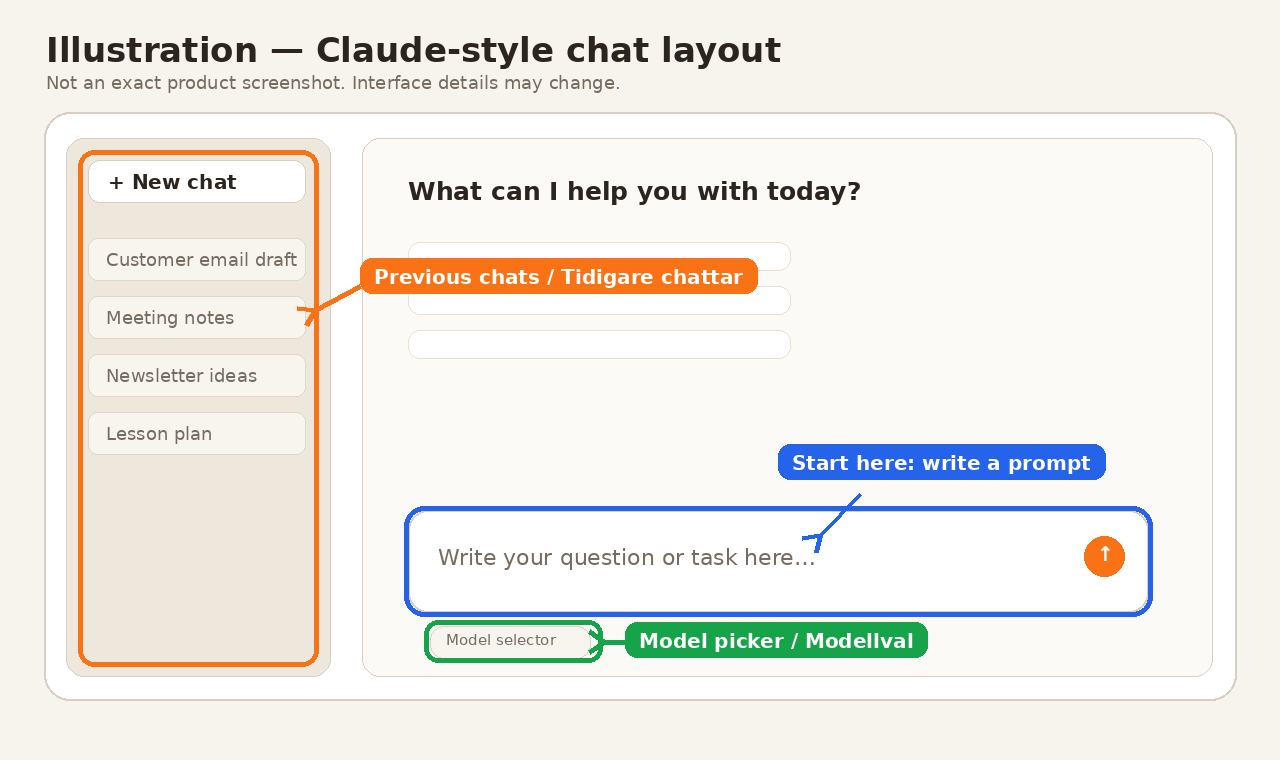
Illustration based on a Claude-like chat layout. The exact interface may change.
As a beginner, you usually do not need to change models. Start with the default option. Model choices, extra features, and paid plans can wait until later.
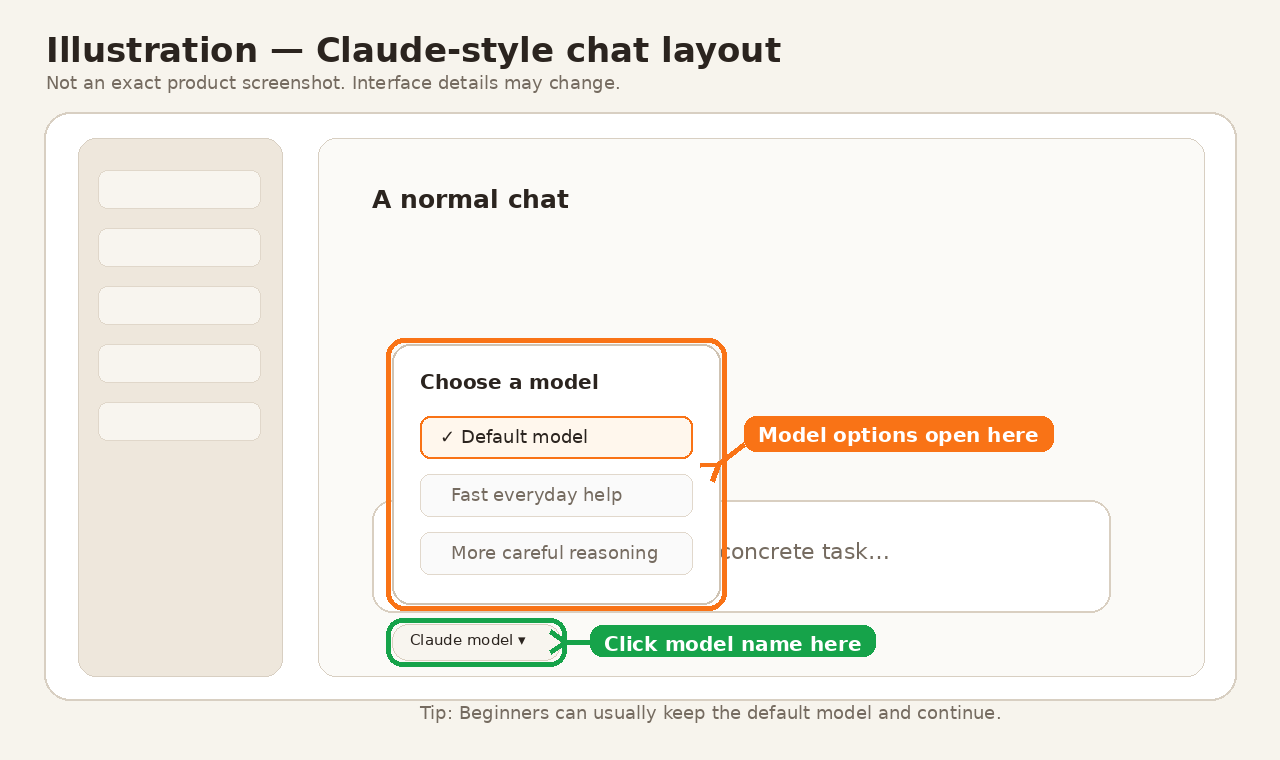
The model picker is useful to recognize, but you usually do not need to touch it at the beginning.
Source: Claude Help Center – Change model version
Step 2: Write your first useful prompt
A good first test is not “what can you do?”. That often gives a general answer. Try an everyday work task instead.
For example, copy this:
I run a small business and need to write a friendly email to a customer who is late sending material.

Write a short first draft in English.
The tone should be helpful, clear, and not stressed.
End with a simple question about when the customer can get back to me.
This works better because Claude gets four useful things:
- Context: you run a small business
- Task: write an email
- Tone: helpful and clear
- Format: short first draft
Source: Claude – Getting started with Claude.ai
Step 3: Improve the answer in the same chat
The important thing is that you do not need to get everything right on the first try. If the answer is close, continue in the same chat.
Example follow-ups:
Make the email shorter and a little more personal.
Write three alternative subject lines.
Make the tone more professional but still warm.
This is often where Claude becomes useful. You shape the answer together instead of trying to write a perfect prompt from the beginning.
A simple prompt template to reuse
When you get stuck, use this structure:
My situation is: [short context]
I want help with: [the task]
The audience is: [customer, student, colleague, supplier]
The tone should be: [friendly, clear, professional]
Give me the answer as: [email, checklist, summary, plan]
If anything is missing, ask 1–2 questions first.
This is enough for most first tasks: emails, summaries, checklists, and simple plans.
Common beginner mistakes
- Too vague: “help me with marketing” is hard. “write three newsletter ideas for existing customers” is better.
- Too much at once: start with one small task.
- No audience: Claude needs to know who the answer is for.
- No review: always read the answer. AI can be useful without always being right.
- Sensitive data too early: test with example data first.
Next step in the series
Once you feel comfortable with normal chat, the next natural step is using Claude more like a recurring coworker. Then it is not just about one-off questions. It is about giving Claude reusable context for an area you work with often.
We will cover that in the next Claude guide: how to start using Claude as a simple coworker for recurring tasks.
Want the next guide when it is ready? Subscribe to the Hammer Automation newsletter. If you want to introduce AI safely in a team, school, or small business, you can also contact us, and we will help you choose a safe first workflow.
The Forge newsletter
Get new articles in your inbox
Pick the topics you care about. No noise, at most one email a week.
We follow GDPR. Unsubscribe anytime.