Build the first lesson as a testable AI kit
 Adam Olofsson Hammare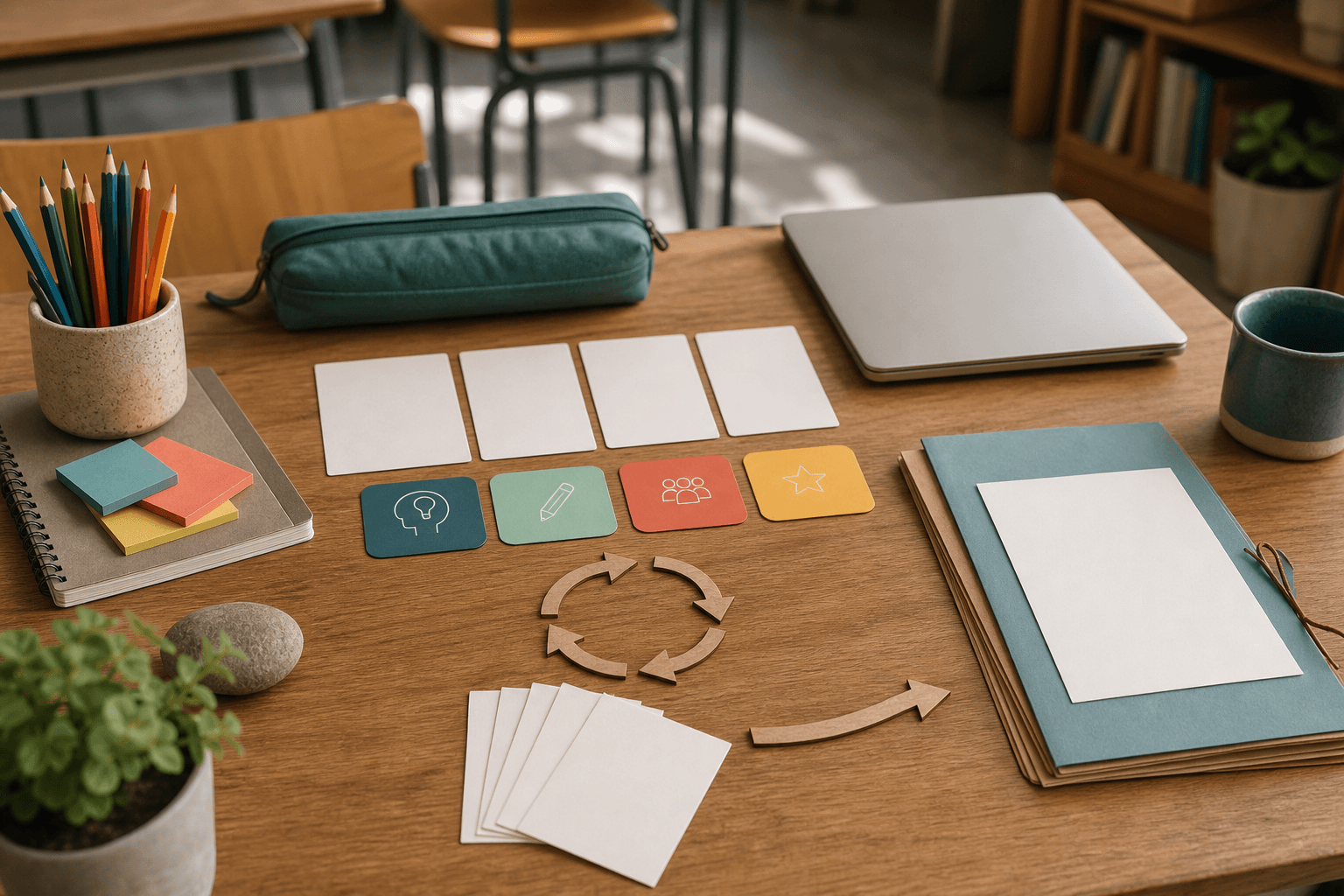
A new term does not need to start with a new AI strategy. It can start with one lesson that teachers can run, review, and improve.
On July 10, Canva brought together its education tools for the coming school year: Learn Grid with curriculum-mapped resources, AI-generated activities, Assign, Live Learning Sessions, offline mode, and learning platform integrations. For a teacher or school leader, the news is not that AI can do more things. The useful part is that planning, classroom activity, student responses, and the next revision can sit in one workflow.
That gives schools a better way to test AI. Do not build twenty lessons at once. Build one complete lesson kit, use it with a group, and let the responses shape version two.
Source: Your Back to School toolkit: Everything teachers need for the year ahead, Canva, July 10, 2026.
What Canva Education puts into one lesson workflow
A lesson kit is more than a presentation. It has a clear learning goal, an activity, a way to see what students understood, and a plan for what the teacher will do with the result.
Canva describes Learn Grid as a library of more than 50,000 curriculum-mapped resources. Teachers can filter by subject, grade, and topic, choose a ready-made activity, or create one with AI. The available formats include sorting exercises, timelines, multiple choice questions, fill-in-the-blank activities, and think-pair-share. Ready-made AI Drafts can be used without spending AI credits.
The feedback loop is what makes this more useful than a template library. Canva says every learning game includes a Canva Sheet that fills as students answer. The teacher can look for patterns and misconceptions instead of merely seeing that work was submitted.
Source: Online teacher resources, mapped to your curriculum, Canva Learn Grid.
Canva Education also has Assign, which gives each student a separate copy and lets the teacher track progress. Live Learning Sessions support shared moments such as polls, mind maps, and group activities. Offline mode lets people prepare material while the connection is stable and sync changes later.
You do not need every feature. A good first test uses the parts needed to answer one practical question: did this activity help students understand this specific concept?
Start with a lesson kit you can evaluate
Choose a lesson that is already in the plan. It should have a clear goal and a moment where student understanding is usually hard to see. It might cover fact versus opinion, fractions, source criticism, or a science concept.
Build the kit in six parts:
- Write the learning goal in one sentence a student can understand.
- Choose a short activity where students use the knowledge instead of only reading or watching.
- Add two check questions during the lesson.
- Decide which misconception you especially want to find.
- Finish with an exit question that takes no more than two minutes.
- Decide before the lesson how the answers will change the next piece of teaching.
That last point is easy to miss. If the responses do not lead to a decision, the data becomes one more thing to sort. Set simple rules. When many students choose the same wrong answer, open the next lesson with a new example. A smaller group that gets stuck can receive a targeted activity. If nearly everyone shows understanding, move on.
AI now has a sensible job. It helps produce a draft and useful variations, while the teacher owns the goal, level, selection, and assessment.
Copy-and-paste prompt: create the first lesson kit
Paste this prompt into Canva AI or another AI tool. Add the curriculum document, source text, or presentation that the lesson must use.
Act as my lesson designer. Help me create a practical kit for one lesson, not a whole course.

Subject: [subject]
Grade/group: [grade or group]
Lesson length: [minutes]
Learning goal: [what students should know or be able to do]
Required source material: [curriculum, text, presentation, or link]
Common misconception: [what students often confuse]
Accessibility needs: [language level, read-aloud support, contrast, alternative format, or other need]

Create:
1. a short opening question that activates prior knowledge,
2. a student activity where learners use the knowledge,
3. two check questions during the activity,
4. an exit question that takes no more than two minutes,
5. a simple response guide showing signs of understanding and misconception,
6. three actions for the next lesson based on the responses.

Use plain, direct language. Mark anything that needs to be checked against the source material. Do not invent curriculum requirements. Give me a text version to review before suggesting layout or graphics.
The prompt asks the tool to begin with content. That is deliberate. A polished activity that checks the wrong thing is still a poor activity.
Run the test in 45 minutes before term starts
Set aside one focused session with a colleague. Bring an existing lesson idea and source material you trust.
Use the first ten minutes to choose the goal and the misconception you want to find. Give the next fifteen minutes to AI drafting and level adjustments. Spend ten minutes checking facts, language, and accessibility. In the final ten minutes, answer the activity as a student and decide how each response should affect the next lesson.
Review four things closely:
- Can a student understand the task without a verbal rescue?
- Do the questions test the learning goal or only memory?
- Can you tell a careless error from a real misconception?
- Does the teacher know what happens after each response pattern?
If the kit passes that review, build it in Canva, choose a Learn Grid activity, and share it through Assign or the school's learning platform. Canva lists integrations with Google Classroom, Canvas, Schoology, D2L, Blackboard, Moodle, and Microsoft Teams. Check which integrations and settings are approved in your environment before using the workflow more widely.
Source: Integrate Canva with your LMS, Canva Education.
Treat student responses as working material, not a verdict
An automatic summary can save time, but it cannot explain everything that happened in the room. A student may have misunderstood the wording, had a technical problem, or thought correctly but explained the answer poorly. Use the responses as signals for the teacher's next decision, not as automatic assessment.
A practical method is to sort responses into three groups: ready to continue, needs another example, and needs a conversation. The teacher reviews the borderline cases. Then the activity, instruction, or example is adjusted for the next run.
Once the workflow works for one lesson, reuse the structure. Keep the fields for the goal, misconception, check questions, exit question, and next decision. Replace the subject content. The AI support then becomes a teaching routine rather than a pile of one-off prompts.
Responsible integration should be concrete
Canva says Canva Education is free for verified K-12 teachers and students, connects with common learning platforms, and does not use student data to train AI models. A school should still complete its normal local review of contracts, accounts, permissions, and personal data.
Keep that review practical. Use school accounts, grant only the access the activity needs, and put a clear approval point before publishing or making broad changes. Do not enter more student information than the activity requires. If data moves between systems, the person responsible should be able to see where it came from, who changed it, and what happened next.
This is a natural Tool Forge task: connect one bounded lesson workflow with the right permissions and a visible feedback loop, without turning it into a large school technology project.
What a useful first test really proves
A useful test does not need to prove that AI saves hours every week. It should answer more ordinary questions.
Did the instruction become clearer? Did the teacher spot a misconception sooner? Was it faster to create an adapted activity? Could a colleague understand and reuse the kit? Did the student responses produce a better version of the next lesson?
If the answer is yes to some of those questions, you have something worth extending. If not, you still know exactly where the workflow failed. That is much more useful than a term full of AI material that nobody had time to test properly.
FAQ
What is a testable AI lesson kit?
It is one lesson with a clear goal, student activity, check questions, a short exit question, and rules for how the responses change the next piece of teaching. AI helps draft the material, while the teacher owns the content and assessment.
Is Canva Education free for schools?
Canva says Canva Education is free for verified K-12 teachers and students. The school should still confirm eligibility, local agreements, and approved account settings.
Can Canva connect to a school learning platform?
Canva lists integrations with Google Classroom, Canvas, Schoology, D2L, Blackboard, Moodle, and Microsoft Teams. Availability depends on the school environment and local approval.
The Forge newsletter
Get new articles in your inbox
Pick the topics you care about. No noise, at most one email a week.
We follow GDPR. Unsubscribe anytime.